
Follow the steps below to install Asiga Composer on your computer.
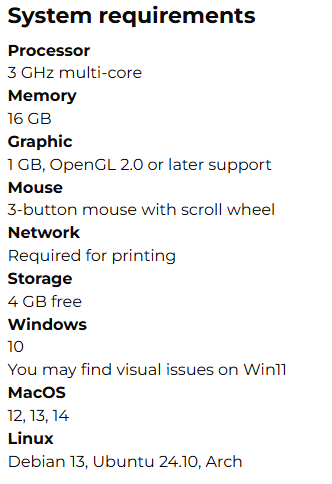
1. Check System Requirements
Before installing, make sure your computer meets the minimum system requirements for Asiga Composer.
2. Go to the Official Asiga Support Page
Open the link below:
https://myaccount.asiga.com/accounts/software/
Log in to your Asiga account if required.
3. Download the Correct Version
On the download page, choose the Composer version that matches your operating system:
Windows 32-bit
Windows 64-bit
macOS
Linux
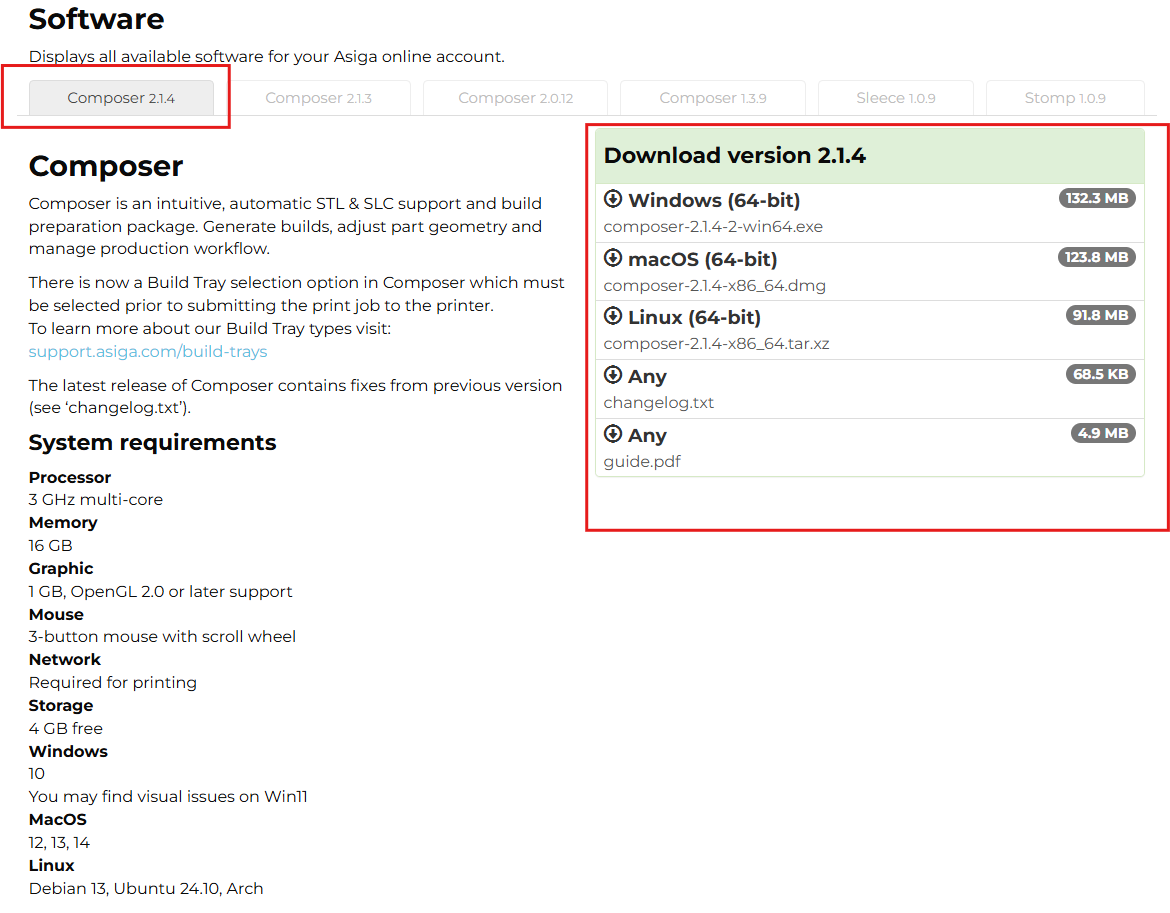
Download the latest version of Composer.
If you prefer the classic interface—no worries. In Composer 2.1 you can easily switch to the classic view from Composer 1.2, while still enjoying all the new functionality and improvements included in the latest release.
This is especially important because new Asiga features—such as the Crown Kit, LIFT trays, and other advanced tools—are only available in the newest versions of Composer.
Download the installer file.
4. Run the Installer
Open the downloaded installation file and follow the on-screen instructions.
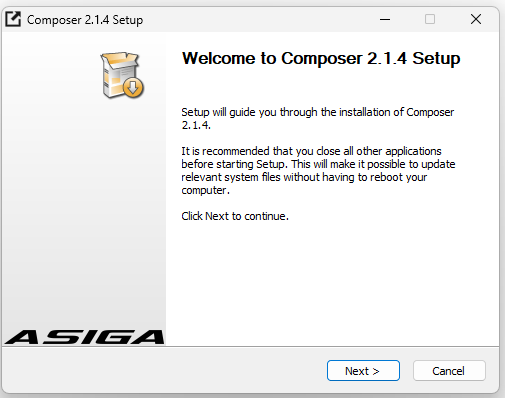
Typical steps include:
Accepting the license agreement
Choosing the installation folder
Confirming settings and completing installation
5. Launch Asiga Composer
After installation:
Locate the Composer icon on your desktop
Double-click to open the program
You’re now ready to enjoy easy and efficient nesting with your Asiga printer!