
To help us check the printer and review how the print job is set up, please send us two files from Composer 2.0:
a Diagnostic Report, and
an Export Build ZIP.
1) Create and save the Diagnostic Report (Composer 2.0)
Open Composer 2.0.
Select your printer in Composer and click OK to confirm the selection.
Go to Help → Diagnostic report.
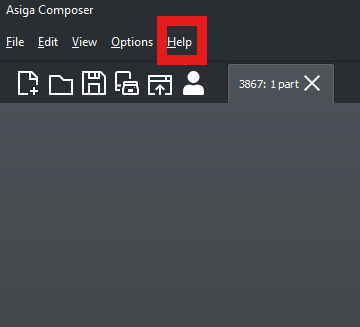
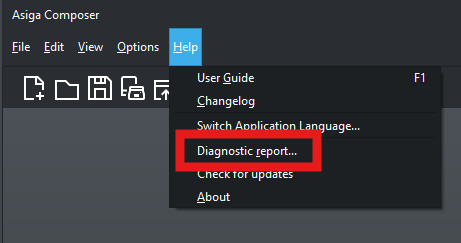
When prompted, choose a location on your computer and Save the file.
Attach the saved Diagnostic Report file to this support ticket.
2) Export the build file (ZIP) so we can review your job setup
In Composer, load the supported part (the exact part you are trying to print).
Go to File → Export Build.
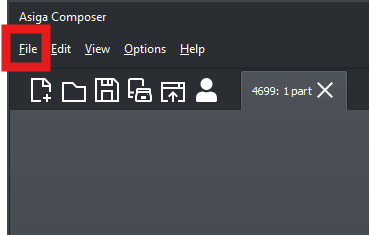
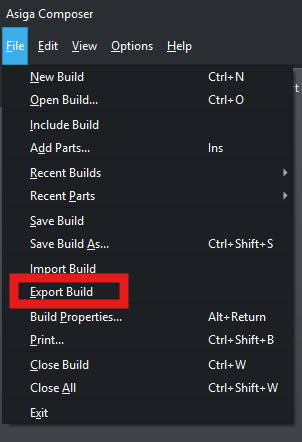
Composer will generate a .zip file—choose a location and Save it.
Attach the exported ZIP file to this support ticket.
3) If your browser blocks the downloaded files (“Insecure download blocked”)
Sometimes your web browser (most commonly Chrome/Edge) may block the Diagnostic Report files and show a warning like “Insecure download blocked”.
Open your browser’s Downloads list (in Chrome you can press Ctrl + J).
Find the blocked file(s) (for example printer.ini and BuildLog.ini).
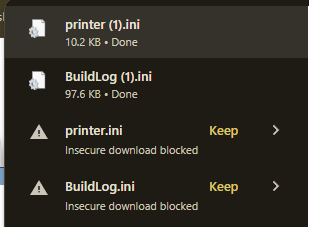
Click Keep (or the arrow next to it) and choose Keep anyway if prompted.
Once the file shows as downloaded successfully, locate it in your Downloads folder.
Attach the file(s) to this support ticket.
Once we receive the Diagnostic Report and the Export Build ZIP, we can provide more specific advice to help avoid printing issues.